

Tunneling
In one sentence: a tunnel lets a server that accepts no incoming connections still have a public https link, by having the server call out first and keep that line open.
Contents
- The problem
- An everyday comparison
- How a tunnel works
- What it looks like on our server
- Why the link changes
- Is it safe?
- Other ways, and why we chose this one
- Try it yourself
1. The problem
Our server is not a machine of its own. It is a container inside the hosting provider's machine (addresses and ports below are examples):
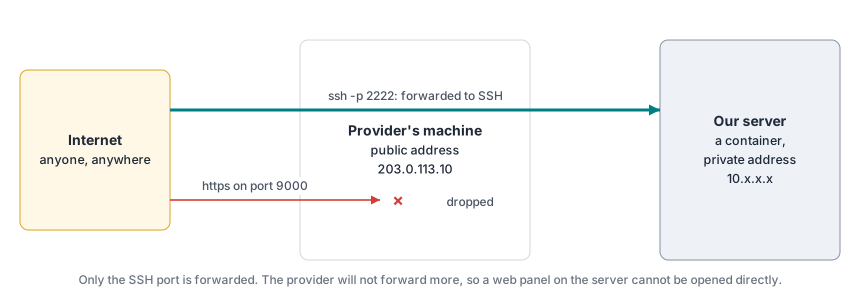
- The internet only sees the provider's public address. Our server has a private address (
10.x.x.x) that cannot be reached from outside, the same way a laptop at home cannot be reached directly from the internet. - The provider forwards one port (SSH) to us. Every other visit stops at the provider's machine.
- The provider will not forward more ports. So
http://<public address>:9000simply times out.
What is allowed: our server can make outgoing connections (that is how it downloads from GitHub and Docker Hub).
2. An everyday comparison
You are in a building whose reception does not put outside calls through to the rooms. Nobody can call you. But you can call out.
So you call a switchboard (a call centre) and leave the line open. The switchboard gives you a public phone number. When someone dials that number, the switchboard passes the call down the line you opened. You can now receive calls, and the reception never had to change anything.
- The switchboard is Cloudflare.
- The open line is the tunnel.
- The public phone number is the link,
https://<words>.trycloudflare.com. - The small program that dials out and keeps the line open is the connector (
cloudflared).
3. How a tunnel works
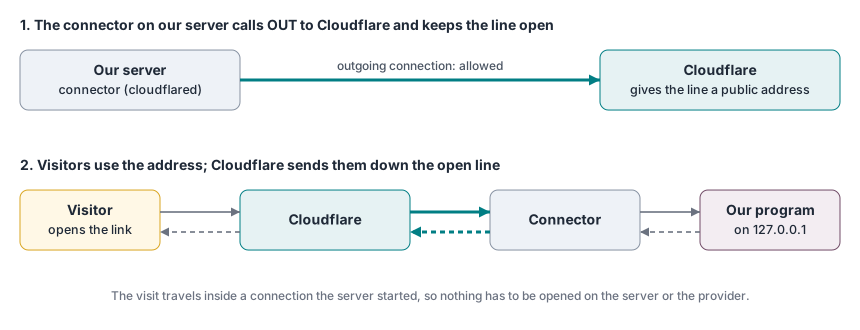
The visitor's request never knocks on our server's door. It travels inside a conversation our server started, so the provider's machine has nothing to forward.
4. What it looks like on our server
Every destination has its own connector, so every destination has its own link:
| Connector (container) | Points to | Link |
|---|---|---|
sudoo-connector-panel | the panel, 127.0.0.1:9000 | the panel's link |
sudoo-connector-sales-main | the gateway of instance sales-main, 127.0.0.1:8070 | that instance's link |
sudoo-connector-<name> | the gateway of each instance | one link per instance |
A connector is started like this (the panel does it, nobody has to):
docker run -d --name sudoo-connector-sales-main --restart unless-stopped --network host \
  cloudflare/cloudflared:latest tunnel --no-autoupdate \
  --metrics 127.0.0.1:20301 --url http://127.0.0.1:8070
and reports its link on its status port:
curl -s http://127.0.0.1:20301/quicktunnel
{"hostname":"river-stone-apple.trycloudflare.com"}
The panel reads that address, shows it, and tells the instance's Odoo its new address (web.base.url).
5. Why the link changes
Quick tunnels are Cloudflare's free tunnels without an account. Each time a connector starts, Cloudflare hands out a new random name, such as river-stone-apple. Nothing ties the name to us, so a new start means a new name.
| Event | Panel link | Instance links |
|---|---|---|
| An instance is paused, restarted or updated | same | same (its connector keeps running) |
The panel is updated (sudoo-install update) | same, unless its connector restarts | same |
| The server restarts | new | new |
The panel always shows the current links, and each Odoo is told its new address within about 15 seconds. Links you sent to people earlier must be sent again.
Permanent links need a named tunnel: a free Cloudflare account plus a domain of our own (about 10 USD a year). Then sales.<our-domain> would stay the same forever. See section 7.
6. Is it safe?
- Visitor to Cloudflare: https, encrypted.
- Cloudflare to our server: inside the connector's own encrypted connection.
- At Cloudflare: the https is decrypted at Cloudflare's edge and encrypted again for the tunnel. Cloudflare can technically see the traffic. For a server without real data, this is acceptable; it is the same model as every website behind Cloudflare.
- Our server stays closed: no port is opened, so the server cannot be scanned or attacked through an open port. Only what a connector points to is reachable, and the panel still requires signing in.
7. Other ways, and why we chose this one
| Way | Works here? | Permanent link | Cost | Trouble | Who can see the traffic |
|---|---|---|---|---|---|
| Open or forward ports | No: the provider will not forward ports | yes | free | none, if allowed | only us (with https) |
| SSH tunnel from each user's computer | Yes, but every user, client and webhook sender would need SSH access | n/a | free | high | only us |
| Cloudflare quick tunnel (what we use) | Yes | no, changes on restart | free, no account | low | Cloudflare and us |
| Cloudflare named tunnel + own domain | Yes | yes | domain, about 10 USD a year | low | Cloudflare and us |
| Tailscale Funnel | Yes | yes | free | medium: account, keys that expire, one device per address | only us (end to end) |
| Tailscale Serve (private network) | Yes, for the team only | yes | free | medium: everyone installs Tailscale | only us |
- We chose the quick tunnel because it works with what the server allows, costs nothing, needs no account, no domain and no software on anyone's computer.
- Least trouble with a permanent link: a Cloudflare named tunnel with our own domain. Only the way connectors are started would change.
- Most private: Tailscale, because the traffic is encrypted end to end; it needs more upkeep and is less suited to many public instance links.
8. Try it yourself
On a Linux computer with Docker, publish a one-line web page to the internet. Use an empty folder: everything in it becomes public while the tunnel runs.
mkdir -p /tmp/tunnel-test && cd /tmp/tunnel-test && echo "Hello through a tunnel" > index.html
python3 -m http.server 8000 --bind 127.0.0.1 &
docker run --rm --network host cloudflare/cloudflared:latest tunnel --url http://127.0.0.1:8000
cloudflared prints a line like https://river-stone-apple.trycloudflare.com. Open it from your phone on mobile data: you see the page, although the computer accepts no incoming connections and the web server only listens on 127.0.0.1. Press Ctrl+C and the link stops working; run it again and you get a different link. Stop the web server with kill %1.